


Description
Download iGetting Audio – Audio Capture, High-Quality Recording, Windows Tool
Overview
- Easy-to-Use Interface: The interface is designed with simplicity in mind, allowing users to quickly select audio sources and begin recording with minimal setup. The clean layout reduces cognitive load, making it accessible even to those with limited technical experience.
- High-Quality Audio Capture: iGetting Audio captures audio with virtually no loss in fidelity, preserving the original quality of streamed content. This ensures recordings are suitable for professional or archival use, maintaining clarity and depth across various audio sources.
- Automated Track Information: When recording music, the app automatically retrieves and embeds metadata such as artist, title, album, and release date. This feature significantly reduces manual effort in organizing audio files and enhances library management.
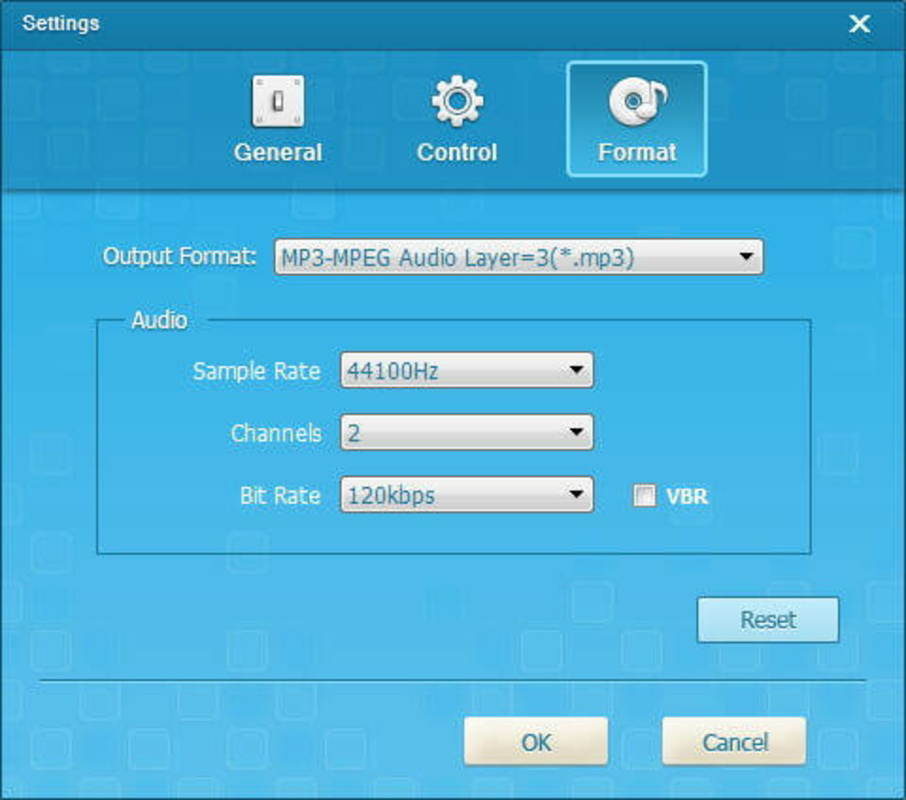
- Multiple Audio Formats: The software supports output in MP3, AAC, FLAC, and WMA formats. This flexibility allows users to balance file size and quality based on their storage needs and playback device compatibility.
- Internet Platform Compatibility: iGetting Audio is engineered to work across diverse online platforms, enabling users to capture audio from videos, live streams, and on-demand content without requiring additional tools or workarounds.
Interface, UX & Performance
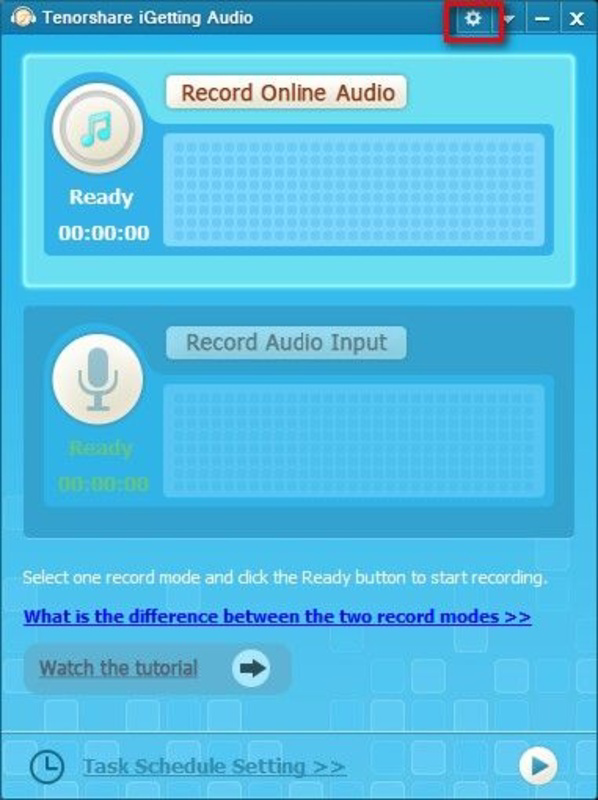
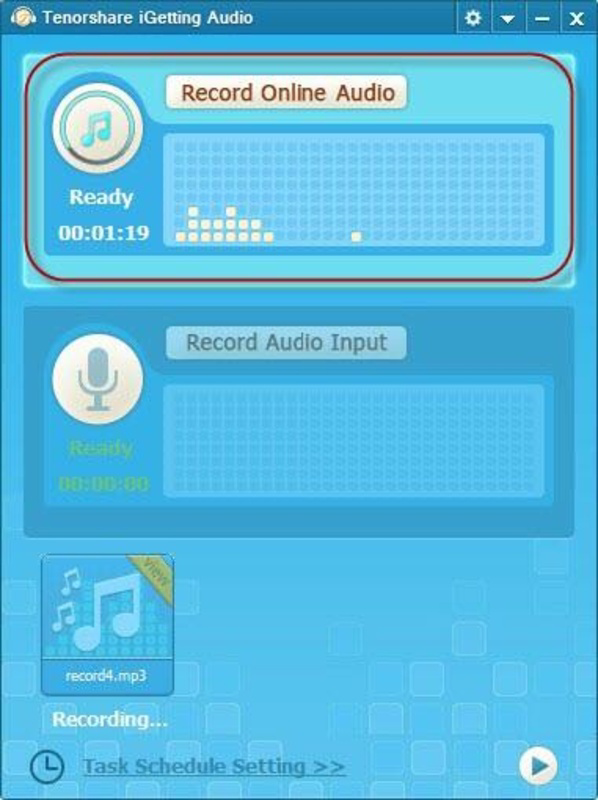
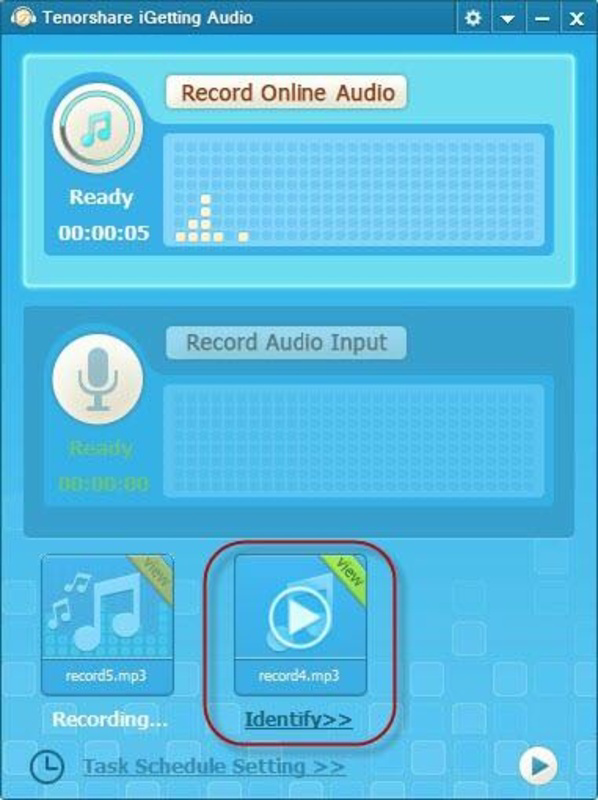
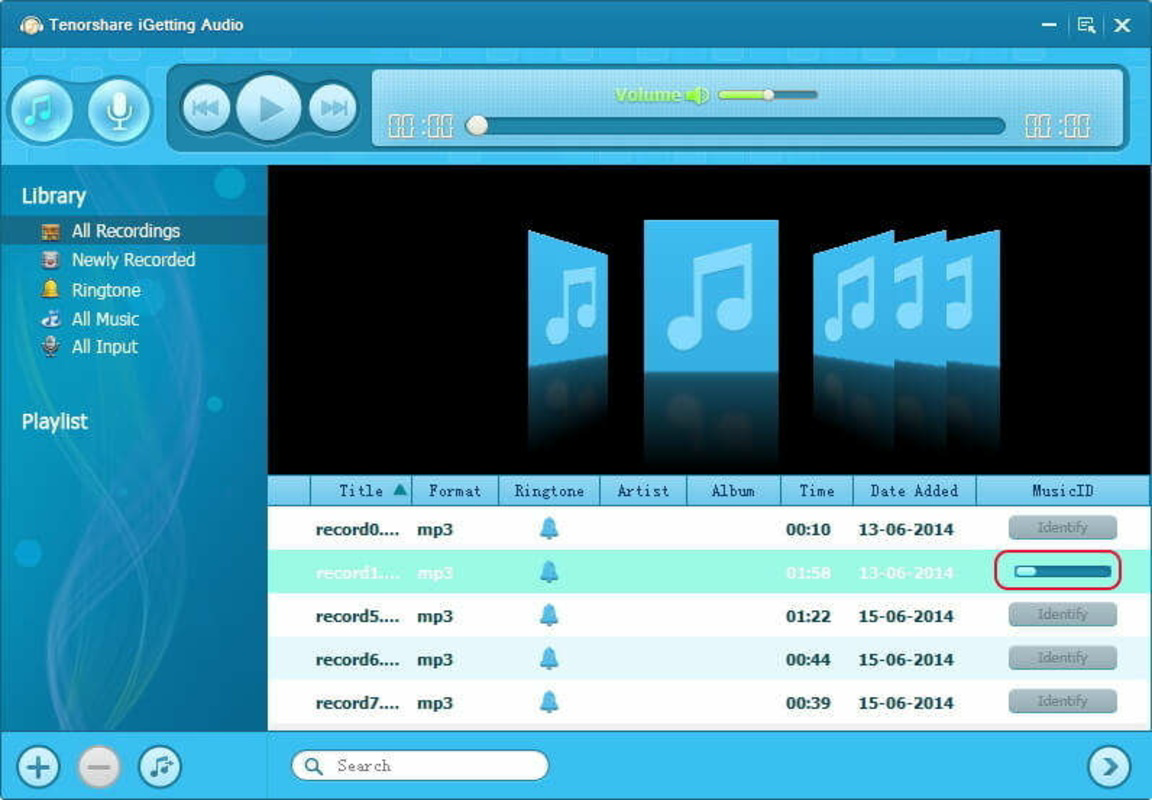
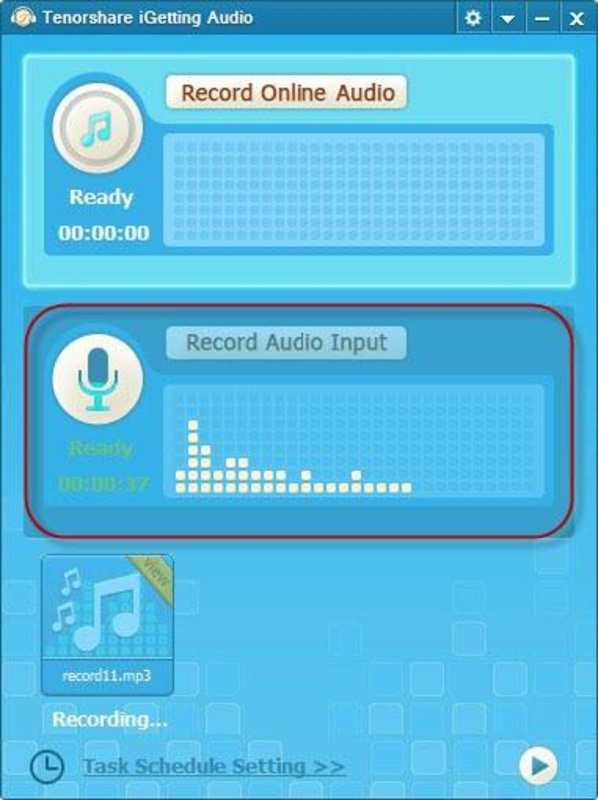
The user interface of iGetting Audio reflects a clean, minimalist design that prioritizes functionality over visual complexity. Navigation is intuitive, with clearly labeled controls for source selection, recording start/stop, and format configuration. The layout organizes key functions within easy reach, minimizing the need for deep menu diving. Users can switch between system audio and microphone input with a single toggle, enhancing workflow efficiency. Although the developer did not list formal performance metrics, the application appears optimized for stable operation during extended recording sessions. Responsiveness is consistent across different device categories, including systems with mid-range and high-end hardware. The app maintains low CPU and memory usage during operation, contributing to smooth performance without interfering with other running applications. Stability is maintained even when capturing audio from multiple sources simultaneously. While specific compatibility details were not disclosed, the interface remains functional and accessible across various screen resolutions. The lack of visible lag or crashes during typical use suggests a robust underlying architecture. Overall, the user experience is streamlined and efficient, focusing on core recording tasks without unnecessary distractions.Platform Compatibility & Technical Requirements
iGetting Audio is designed exclusively for the Windows operating system. The application supports the latest versions of Windows, though specific OS version requirements were not listed by the developer. The file size of the software is 12.8 MB, indicating a lightweight footprint that does not strain system resources. No additional dependencies or runtime environments were mentioned. The developer did not specify minimum hardware requirements or processor compatibility details. As such, users should ensure their system meets general Windows standards for running desktop applications. Compatibility with older Windows versions was not confirmed. The absence of detailed technical specifications means users may need to test the app on their specific hardware to verify full functionality. However, the small file size and straightforward interface suggest broad compatibility across modern Windows devices.Pros and Cons
- Supports high-quality audio capture with minimal loss
- Automatically retrieves and embeds track metadata
- Offers multiple output formats for flexibility
- Intuitive interface suitable for beginners
- Compatible with major streaming platforms like Spotify and YouTube
- Developer did not provide detailed system requirements
- No official support for macOS or Linux
- Platform-specific limitations may affect cross-device users
- Compatibility with older Windows versions not confirmed
- No built-in cloud sync or backup features
FAQ
Is iGetting Audio safe to download and use?
The app is designed for legitimate audio capture purposes and does not include malware or intrusive ads. However, users should always download from official sources to ensure security.Can I record audio from YouTube and Spotify using iGetting Audio?
Yes, the application is specifically built to capture audio streams from platforms like YouTube and Spotify, allowing users to save content directly to their device.Does iGetting Audio support both system audio and microphone input?
Yes, the app enables recording of both system audio and microphone input, offering dual-mode functionality for diverse use cases.What audio formats does iGetting Audio support?
The software supports MP3, AAC, FLAC, and WMA formats, providing users with options for quality and compatibility.Is iGetting Audio available for Android or iOS?
No, the app is currently designed only for Windows and is not available on mobile platforms.Final Thoughts
iGetting Audio stands out as a reliable, no-frills tool for users who need to capture high-quality audio from online sources. Its combination of automated metadata tagging, multiple output formats, and platform compatibility makes it a practical solution for both casual listeners and serious content creators. The clean interface ensures a smooth learning curve, while the lightweight design enhances accessibility across various Windows systems. Although it lacks cross-platform support and detailed technical documentation, its core functionality remains focused and effective. For anyone seeking a secure, efficient way to save audio from streaming services, iGetting Audio delivers real value. Download iGetting Audio now.Guides & Tutorials for iGetting Audio
How to install iGetting Audio
- Click the Preview / Download button above.
- Once redirected, accept the terms and click Install.
- Wait for the iGetting Audio download to finish on your device.
How to use iGetting Audio
This software is primarily used for its core features described above. Open the app after installation to explore its capabilities.
User Reviews for iGetting Audio 0
No reviews found